Notice Period Enforcement
The Notice Period setting lets merchants define a "protection window" before a renewal date, during which cancellations are either blocked or accompanied by a warning. This prevents last-minute cancellations just before a billing cycle.
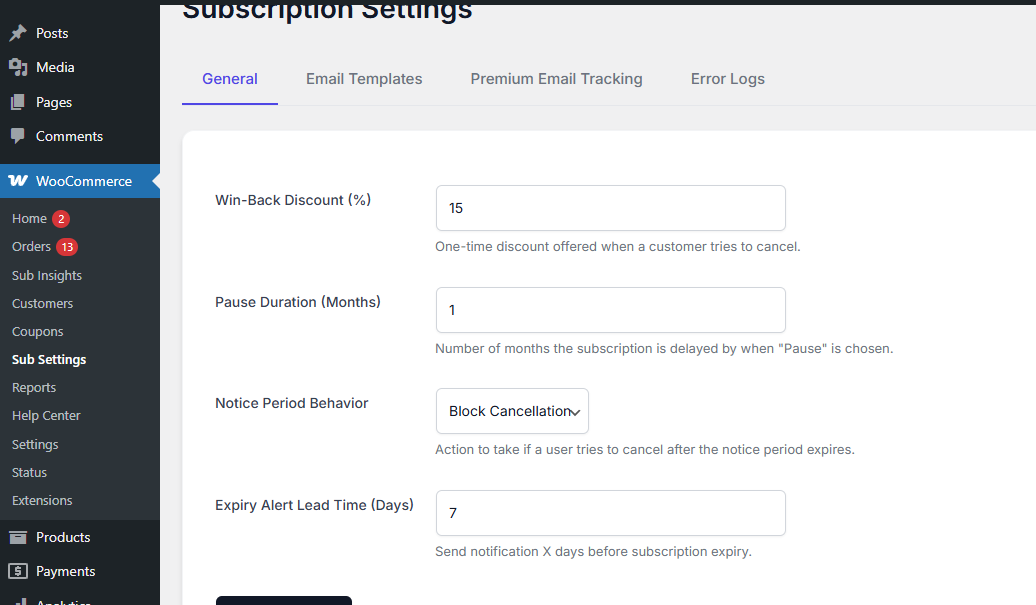
How to Configure
The Notice Period is configured at two levels:
1. Per-Variation (Days)
In the Subscription Settings card of each product variation, enter a number in the Notice Period (Days) field.
📌 Example: Set to
7 → A customer cannot cancel (or will be warned) within 7 days of their next renewal date.2. Global Behavior (Block vs. Warn)
In WooCommerce → Sub Settings → General, set the Notice Period Behavior:
| Behavior | What Happens | Use Case |
|---|---|---|
| Block Cancellation | The cancel button is disabled and a message is shown explaining the notice window is active. The customer cannot cancel until the window has passed. | Strict subscription contracts, prepaid products. |
| Allow with Warning | A warning message is displayed but the customer can still cancel if they choose to proceed. | Softer approach — transparency without hard blocks. |
Customer Experience
When a customer attempts to cancel within the notice window, they see a message like:
"Your next renewal is in 5 days. Cancellations within the 7-day notice period are not permitted. Please try again after [date]."
Notice Period Flow Diagram
- 🟢 Outside Notice Window → Cancel button works normally (Win-Back modal may still appear).
- 🔴 Inside Notice Window (Block) → Cancel button disabled. Notice message shown.
- 🟡 Inside Notice Window (Warn) → Warning shown, but customer can still confirm cancellation.
💡 Recommendation: Set the notice period to 5–7 days for monthly subscriptions. This ensures the renewal payment is captured before cancellations can be processed, protecting your revenue.